
How to Turn Your Instagram Followers into Clients
You've been posting consistently. The follower count is climbing. People like your content, leave comments, maybe even send the occasional "love your posts!" DM. And yet — your client roster hasn't moved.
This is one of the most common frustrations trainers bring up. The audience is there. The interest is there. But somewhere between "following you on Instagram" and "paying for your coaching," people just... disappear.
The gap is almost always the same thing: there's no clear path from your profile to your services. Followers scroll past, feel inspired for a moment, and then move on. Without a frictionless next step, that inspiration goes nowhere.
This guide walks through exactly how to close that gap using TrainingPro's Link in Bio system — a public page that turns your Instagram profile into a proper lead-generation tool.
Why Most Trainers' Instagram Profiles Don't Convert
Instagram gives you one clickable link. One. And most trainers either leave it blank, point it at a generic website, or paste in a raw URL to a Google Form from 2021.
None of those options are doing any work for you.
When a potential client lands on your profile and feels curious enough to click that link, they're at peak interest. That moment is short. If they hit a slow-loading website, a confusing homepage, or a dead end — they're gone. Back to scrolling.
What you actually need is a page that:
- Loads instantly on mobile (because that's where 90% of your audience is)
- Shows who you are and what you offer in seconds
- Has a clear, low-friction way to get in touch or apply
That's what a proper Link in Bio page does. And TrainingPro builds one for you, connected directly to your coaching business.
The System: Profile → Public Page → Lead Form → Client
Before getting into the setup, it helps to understand the full flow. Here's what the client journey looks like when this is working properly:
- A follower sees your content on Instagram and clicks the link in your bio
- They land on your TrainingPro public page — a clean, branded page with your photo, a short bio, and your key links
- One of those links is a lead form: "Apply for Online Coaching" or "Book a Free Consultation"
- They fill it out on their phone in under two minutes
- You get notified immediately in your TrainingPro dashboard
- You follow up, and that follower becomes a client
Every step in this chain matters. A weak link anywhere and you lose them. Let's build each one properly.
Step 1: Set Up Your Public Page
Your TrainingPro public page is the hub. It lives at a URL like portal.trainingpro.app/p/your-name — short, clean, and easy to drop into your Instagram bio.
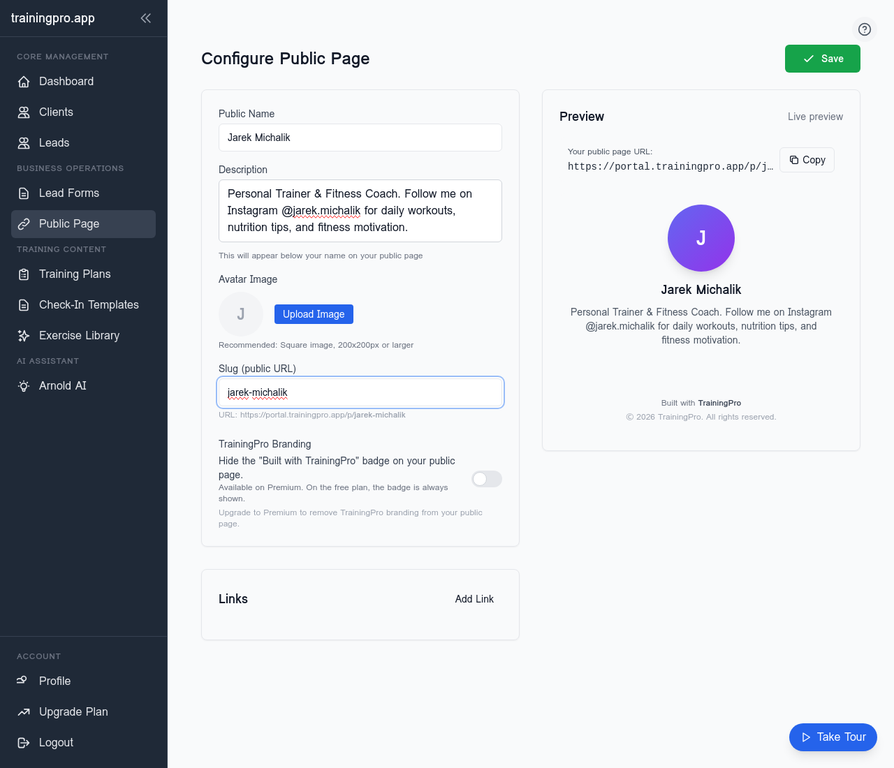
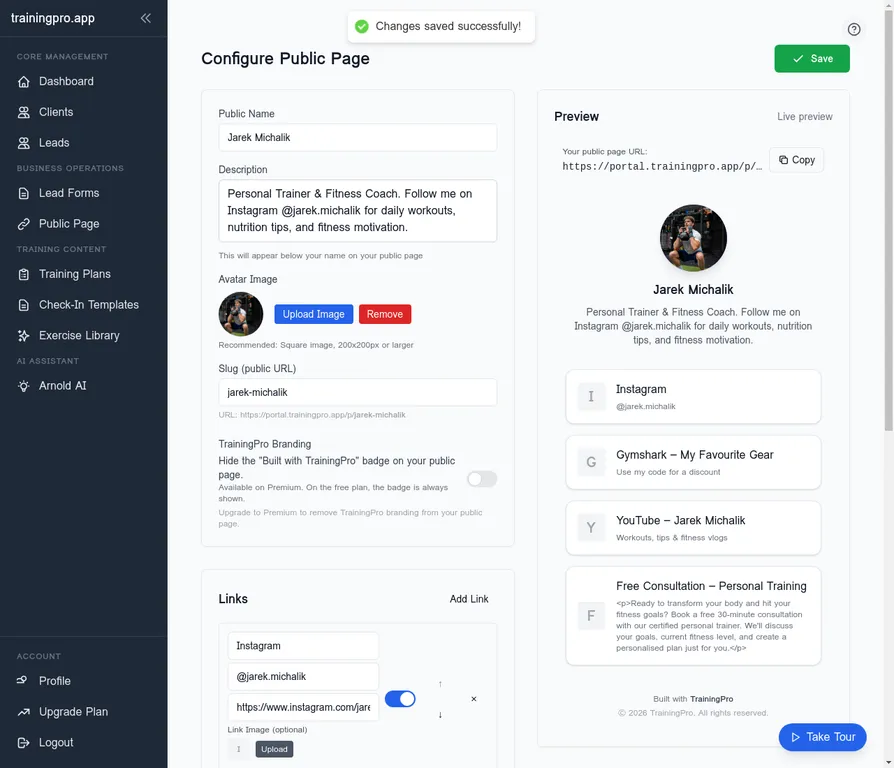
Log into your TrainingPro portal and navigate to the Public Page section. You'll configure three things here:
- Public Name — your name or business name, displayed at the top
- Description — a short, punchy bio. Two or three sentences max. What you do, who you help, what makes you different.
- Slug — the unique part of your URL. Keep it simple: your name or handle.
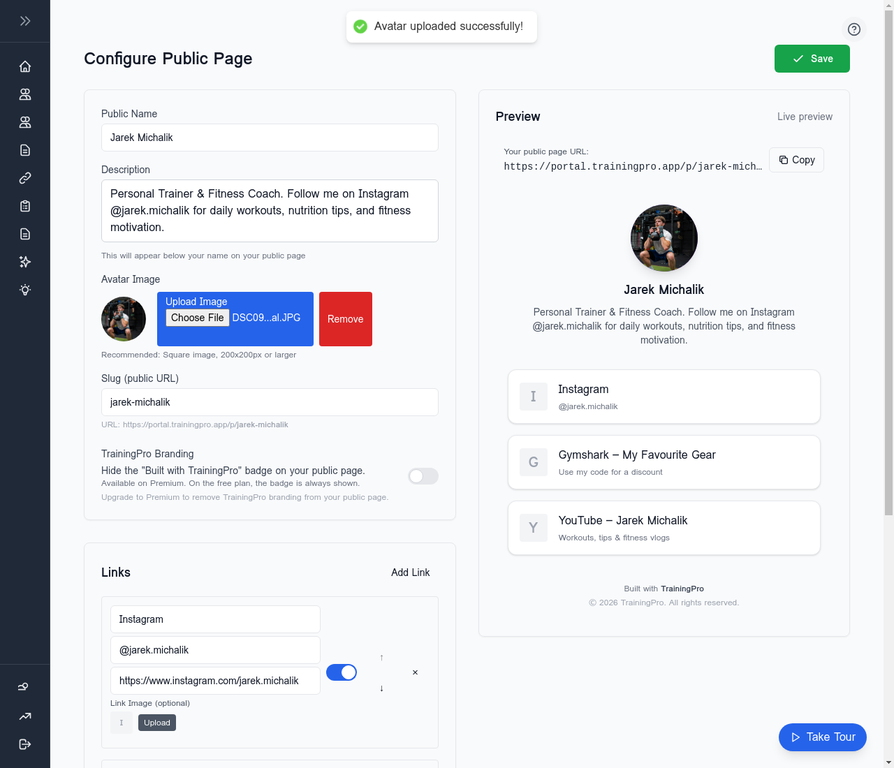
Once the basics are in, upload a profile photo. A clear headshot works better than a logo here — people connect with faces, especially when they're deciding whether to trust you with their fitness goals.
Step 2: Add Your Key Links
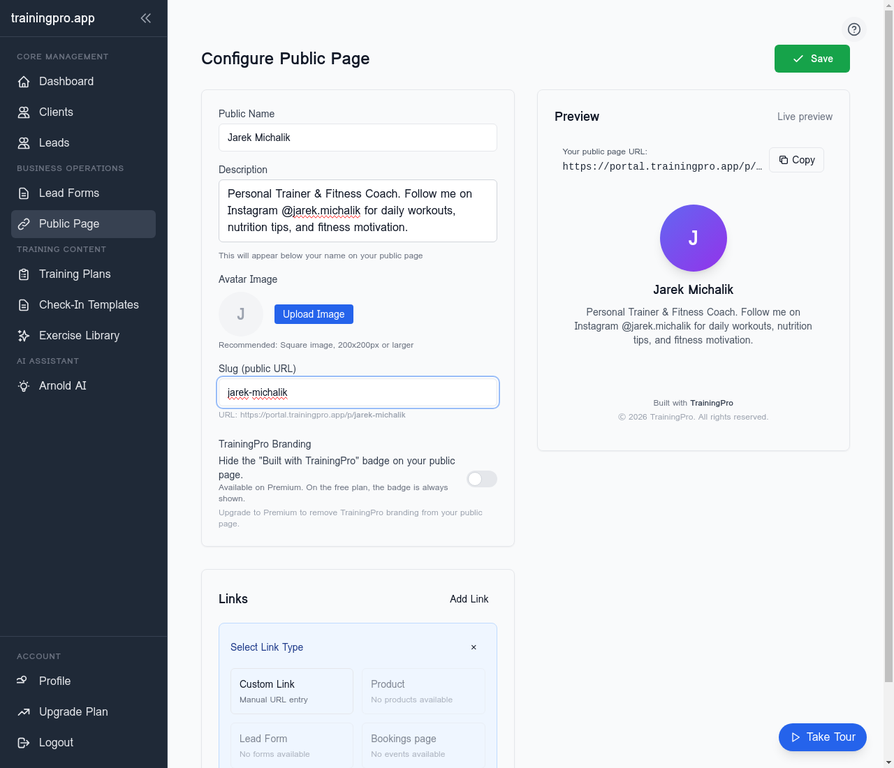
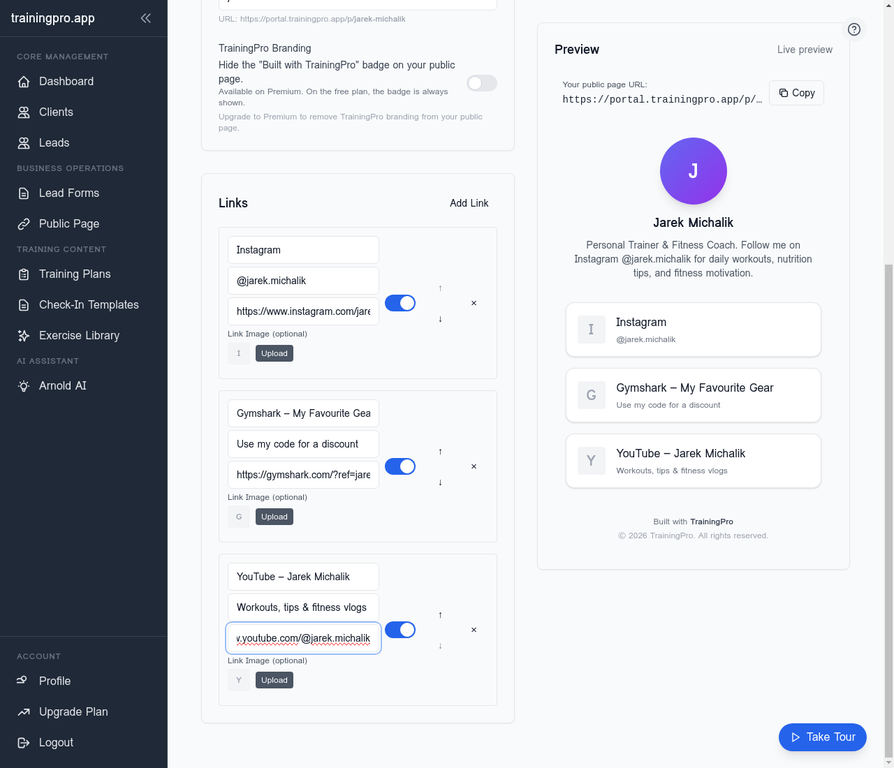
Now you add the links that will appear on your public page. Click Add Link and you'll see a few options. For social media profiles and external URLs, choose Custom Link.
Keep this focused. The biggest mistake trainers make here is adding every link they can think of — TikTok, YouTube, podcast, newsletter, affiliate code, merch store. That's a menu, not a call to action.
Think about what you actually want a potential client to do. Usually that's:
- Follow you on Instagram (if they found you elsewhere)
- Watch a video that demonstrates your coaching style
- Fill out an inquiry form
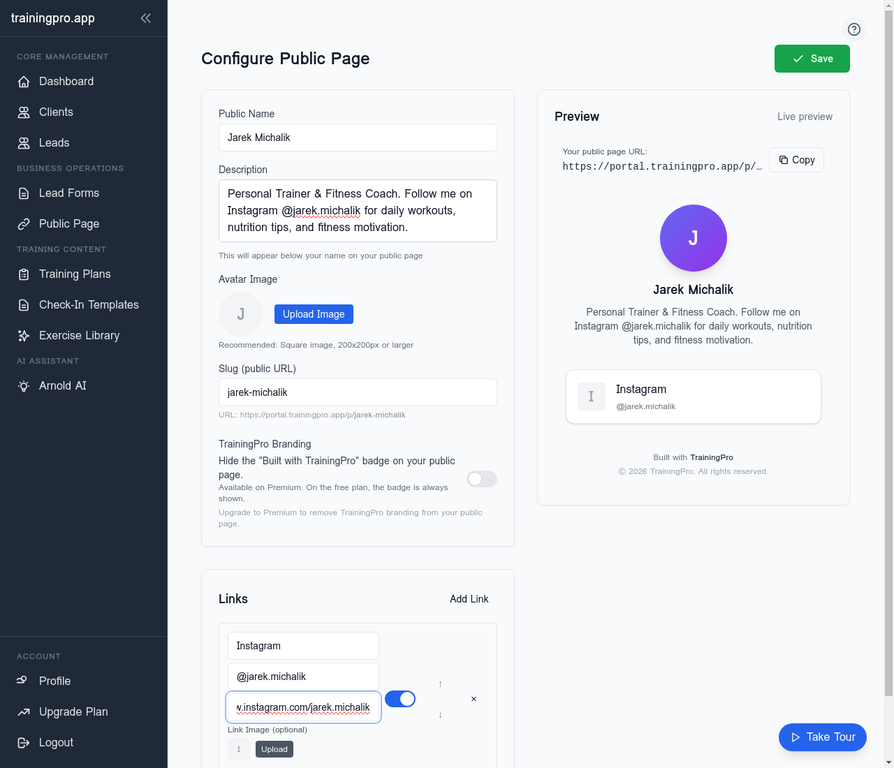
Add two or three links maximum. Here's an example of a clean setup:
Step 3: Build Your Lead Form
This is where the real work happens. A lead form is the mechanism that converts a curious follower into a warm lead you can actually have a conversation with.
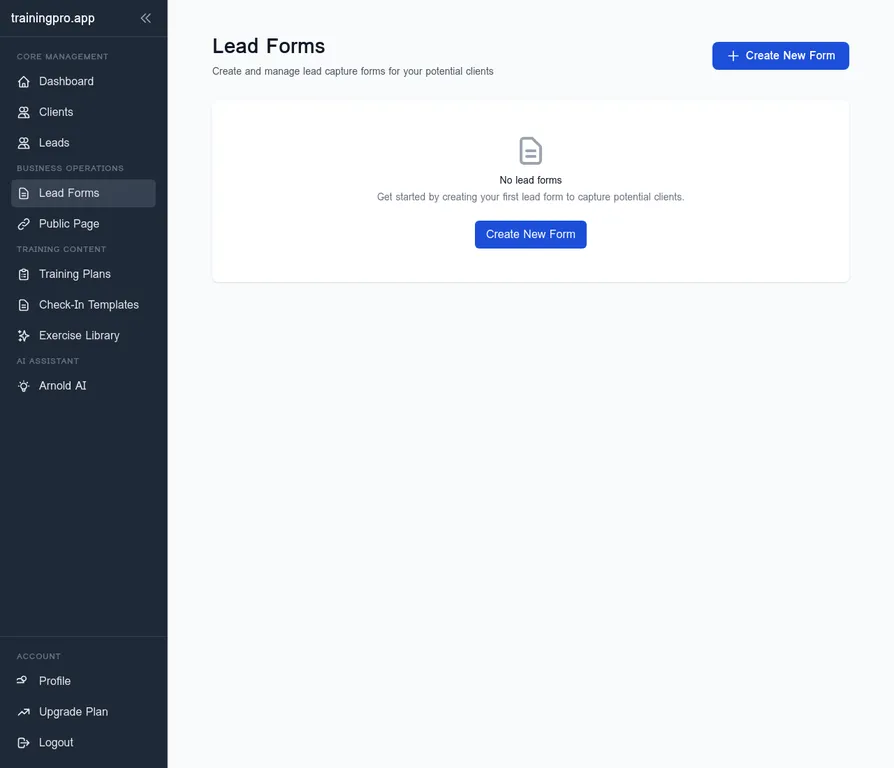
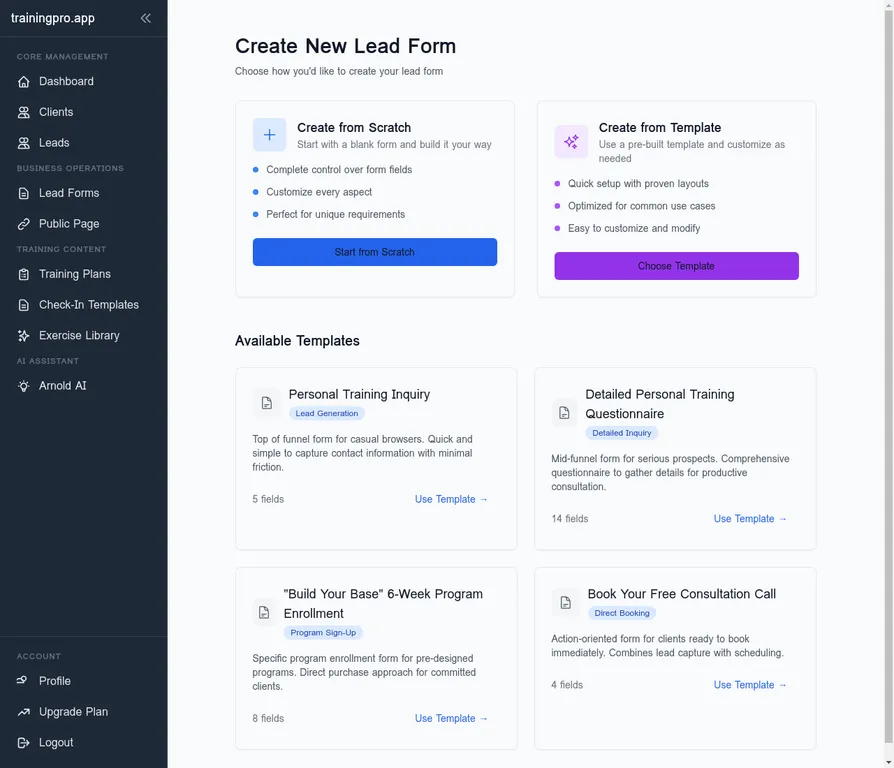
In TrainingPro, navigate to the Lead Forms section and click Create New Form. You can start from scratch or use a template.
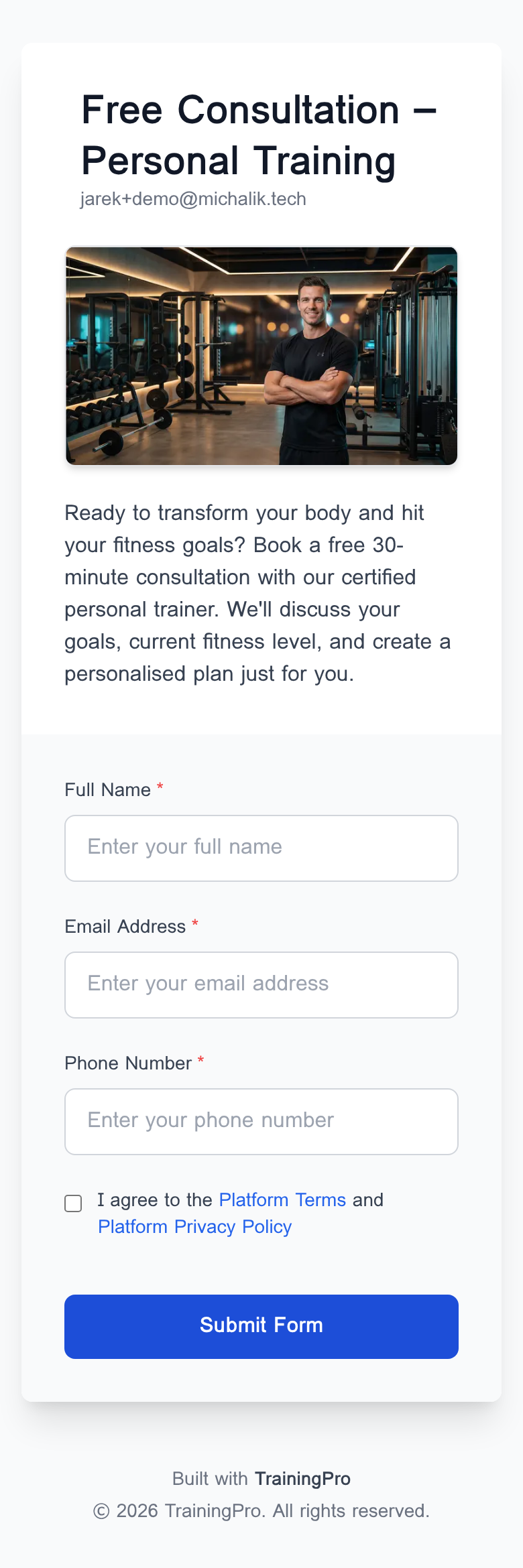
Give the form a name that speaks directly to what the person wants. "Apply for Online Coaching" converts better than "Contact Form." "Book Your Free Consultation" is better than "Enquiry."
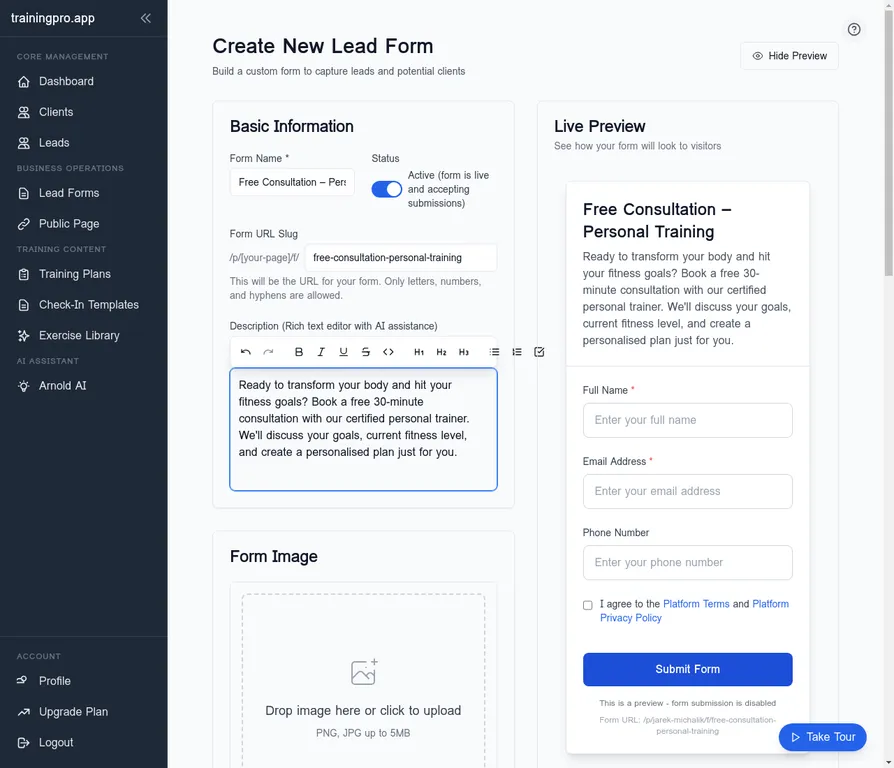
For fields, keep it short. Name, email, and one or two qualifying questions is usually enough. Every extra field you add costs you conversions. The goal here is to get them into your pipeline — you can gather more information on the call.
What to Ask on Your Lead Form
The best-performing lead forms ask: name, email, and one qualifying question like "What's your main goal right now?" or "Have you worked with a trainer before?" This tells you whether they're a good fit without scaring them off with a 10-question application.
Once the form is configured, click Create Form to save it.
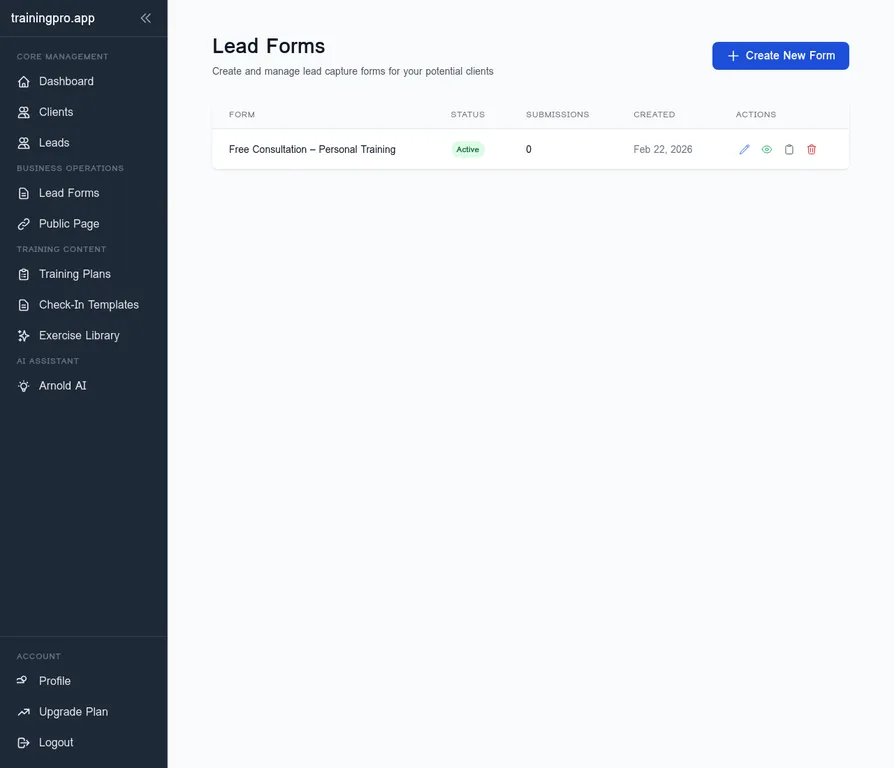
Step 4: Connect the Lead Form to Your Public Page
Now you link the two together. Go back to your Public Page and click Add Link again — but this time, select Lead Form instead of Custom Link.
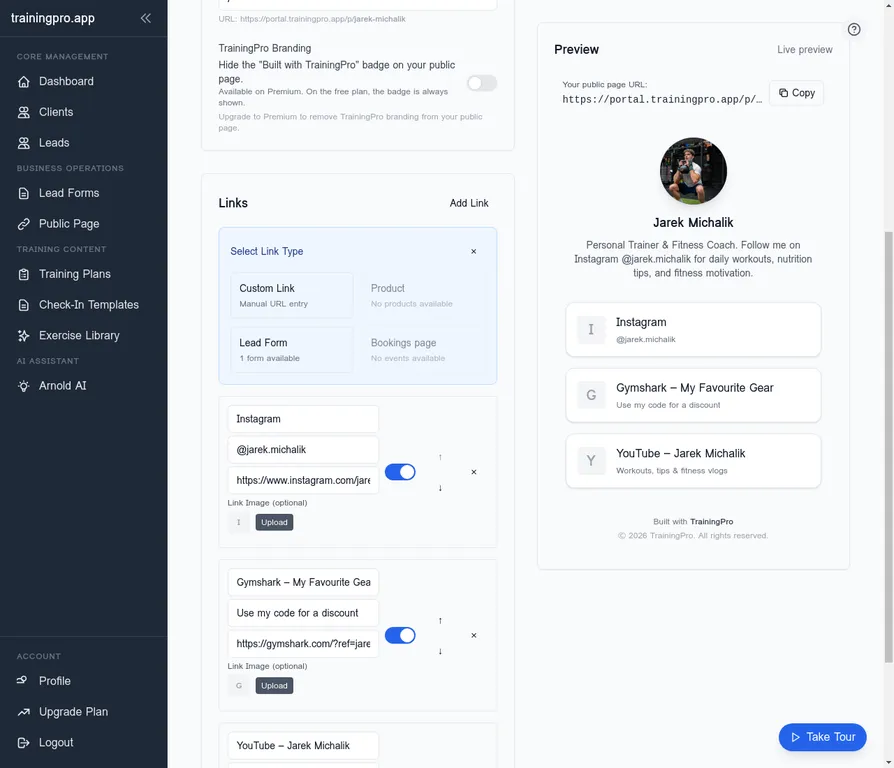
You'll see a list of your available forms. Select the one you just created.
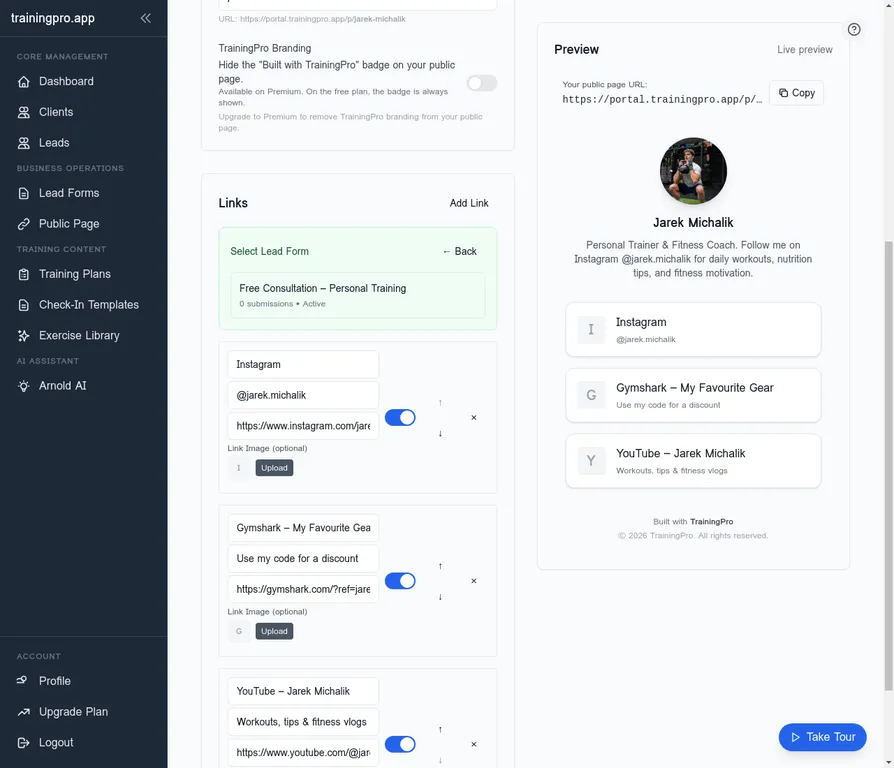
The form will appear in your public page preview. You can see exactly how it will look to a visitor before you publish.
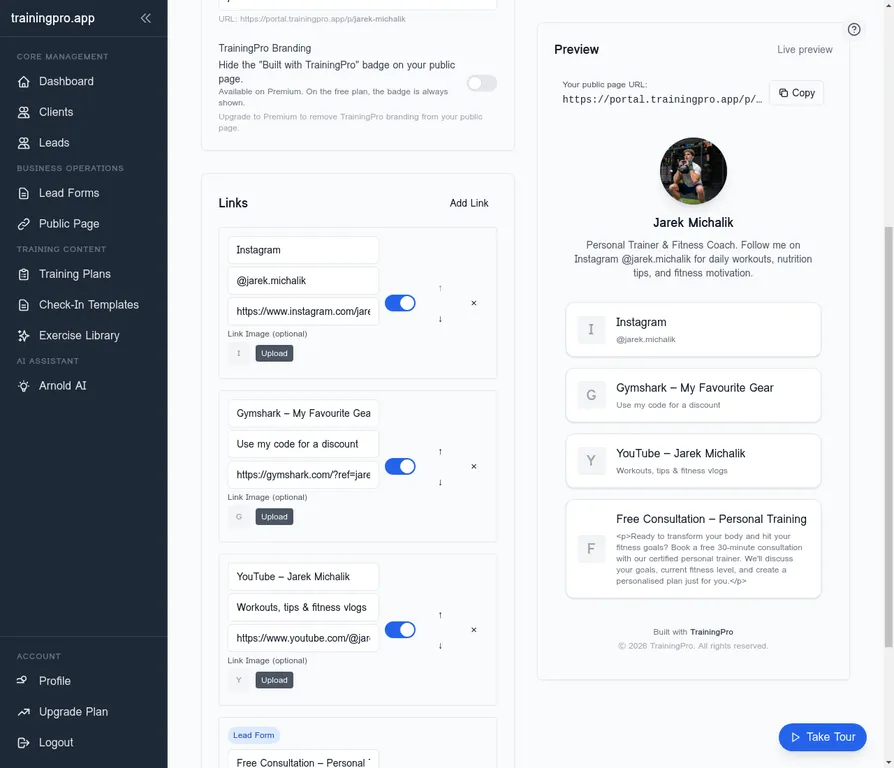
Hit Save, and your public page is live.
Step 5: See What Your Followers Experience
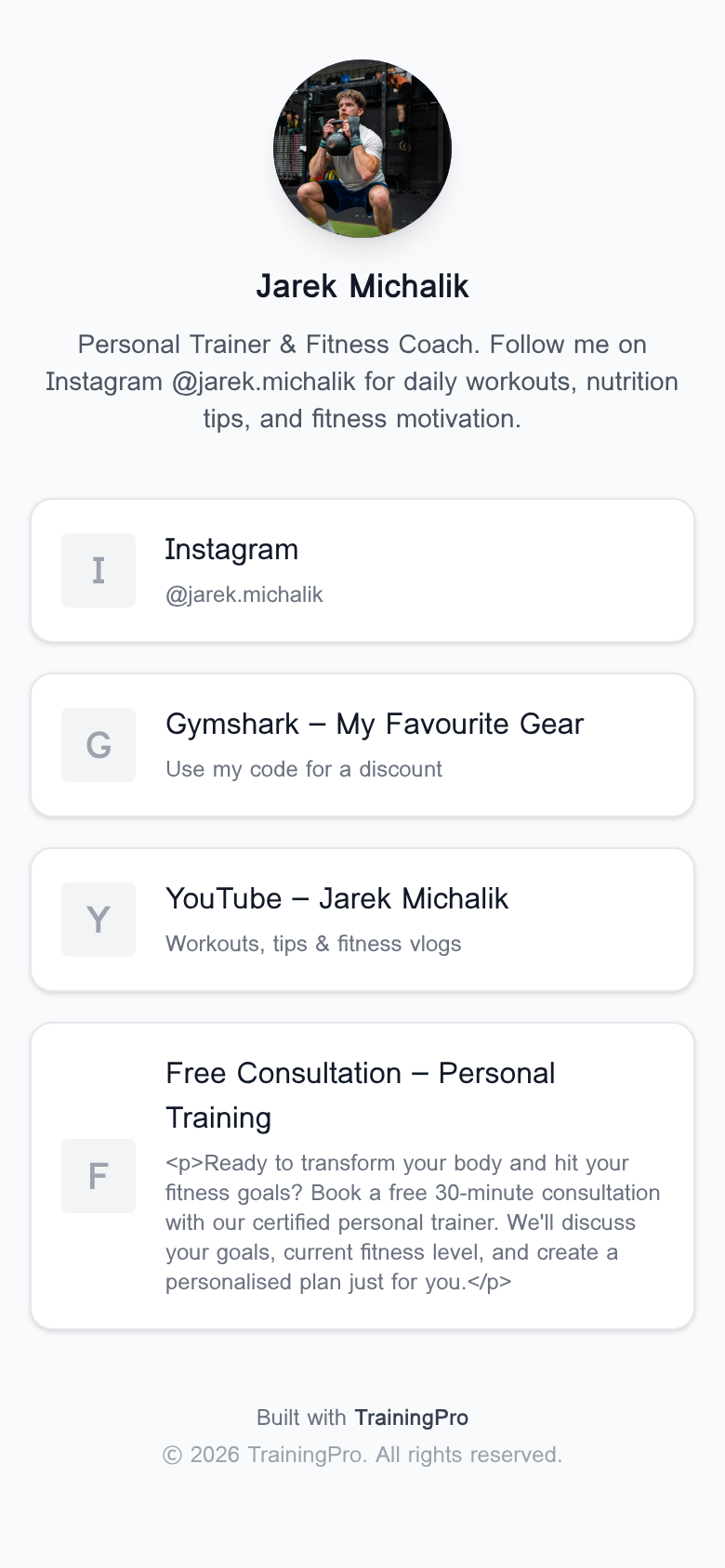
Before you update your Instagram bio, take a minute to go through the flow yourself on your phone. This is what a potential client will see.
Your Link in Bio page on mobile:
When they tap the lead form link, they land on a clean, mobile-optimised form:
They fill it in — takes about 90 seconds:
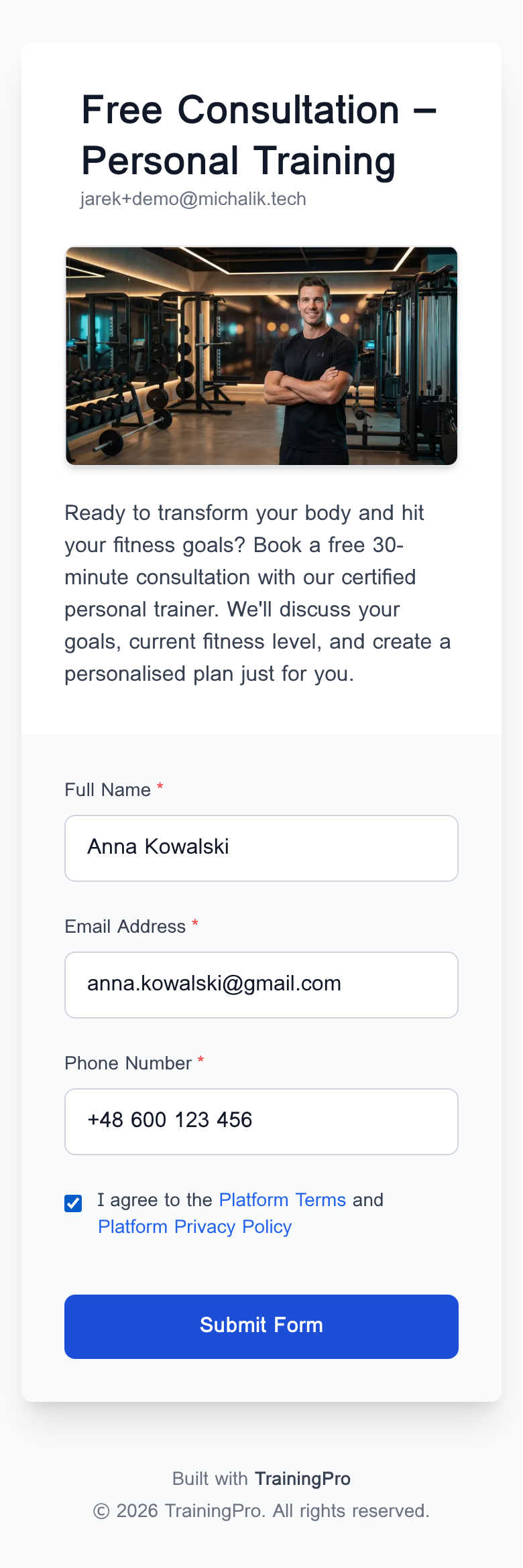
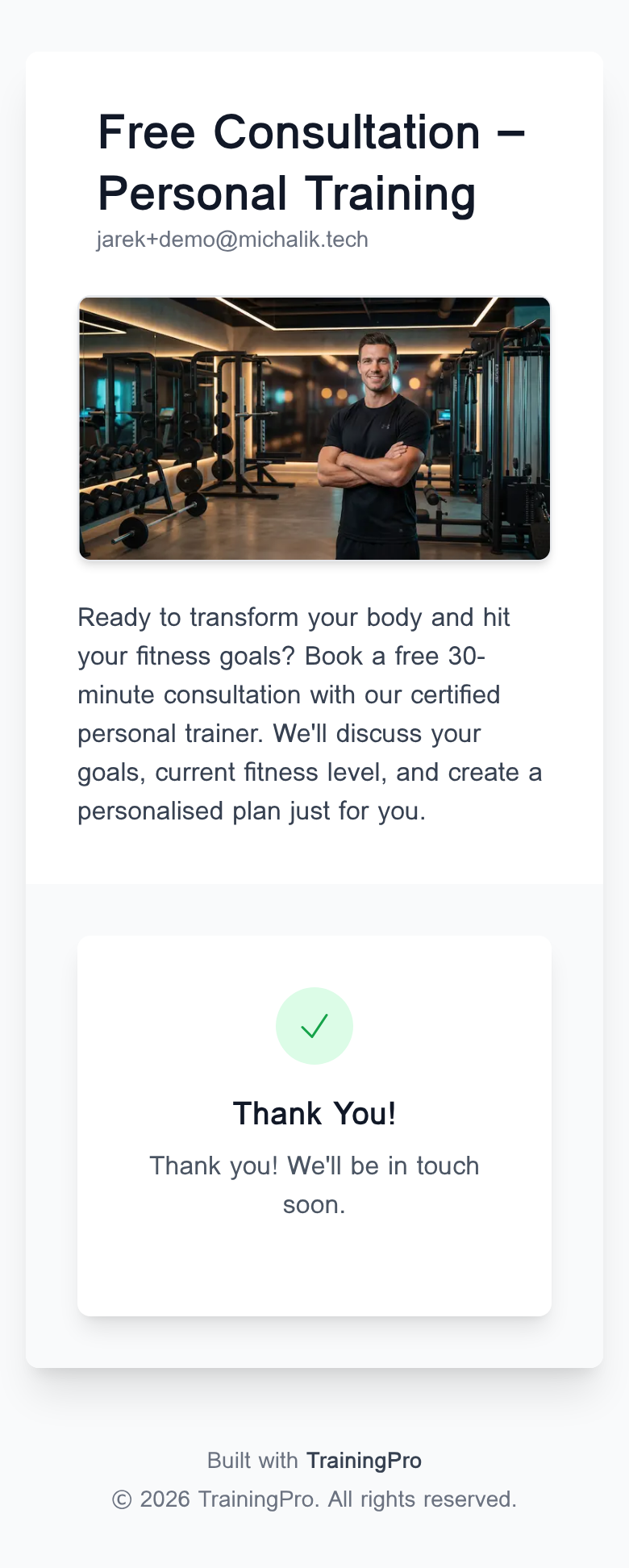
They submit, see a confirmation, and they're done. No confusion, no friction.
Step 6: Follow Up Fast
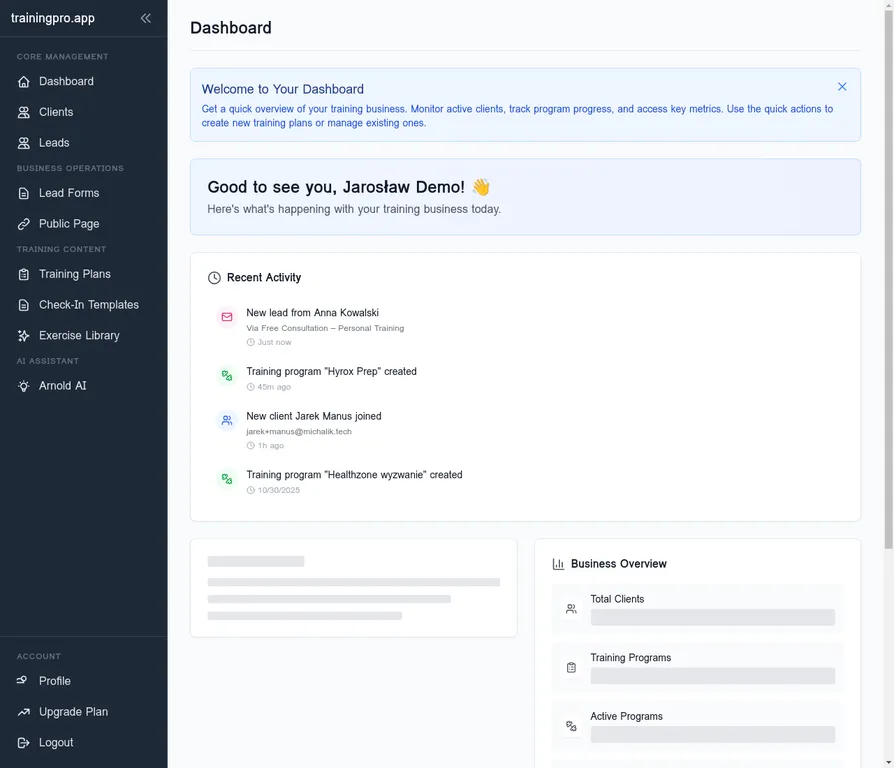
The moment someone submits your form, you'll see a notification in your TrainingPro dashboard under Recent Activity.
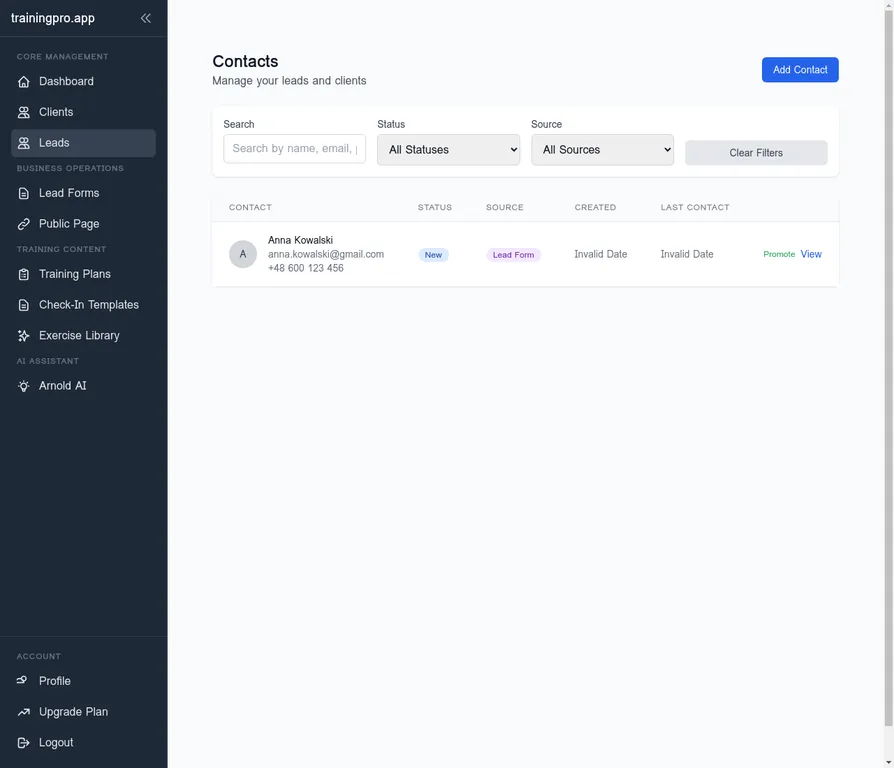
All your leads are collected in the Leads section, with their contact details and form responses ready to review.
Speed matters here. Research consistently shows that responding to a lead within the first hour dramatically increases your chances of converting them. They submitted the form while they were motivated — catch them in that window.
A simple DM or email works: "Hey [Name], saw your application come through — love your goal. When's a good time for a quick call this week?"
That's the whole system.
Common Mistakes to Avoid
Sending followers to your website homepage. A homepage is designed for many types of visitors with different intentions. A potential client who just saw your Instagram post needs one thing: a clear path to work with you. A focused public page converts far better than a generic homepage.
Using a third-party link-in-bio tool with no lead capture. Tools like Linktree are fine for sharing links, but they don't capture leads. When someone clicks away to Instagram or YouTube, they're gone. Your TrainingPro public page keeps them in your ecosystem and gives them a reason to leave their contact details.
Asking too many questions on the form. If your form has more than five fields, you're losing people halfway through. Start simple. You can always ask more on the discovery call.
Not updating your Instagram bio link. This sounds obvious, but it's the step people forget. Once your public page is live, go to Instagram, tap Edit Profile, and replace whatever is currently in your bio link with your TrainingPro public page URL.
Waiting too long to follow up. A lead that goes 48 hours without a response is a cold lead. Set a reminder or check your TrainingPro dashboard daily.
Putting It All Together
The reason this system works is that it removes the guesswork for both you and the potential client. They don't have to figure out how to reach you. You don't have to manually chase people through DMs. The whole process — from Instagram profile to lead in your dashboard — is automated and professional.
For a deeper look at building lead forms that convert, see our guide on how to create a high-converting lead form. And if you're still building your audience and want more strategies for getting those first clients, this 30-day system covers the full picture.
Your Instagram following is already an asset. This is how you make it work for your business.
No. Even with a few hundred engaged followers, this system can generate consistent leads. The quality of your content and the clarity of your offer matter far more than follower count. A trainer with 500 engaged followers and a clear call to action will out-convert one with 10,000 passive followers and no lead capture system.
Be specific about who you help and what result you deliver. Something like "Online coaching for busy professionals | Apply below 👇" works better than a generic "Personal Trainer | DM for info." The link text or arrow emoji draws the eye down to your bio link.
Yes, and for trainers it's a better option. Linktree just redirects people to other platforms. TrainingPro's public page keeps potential clients in your ecosystem and lets you capture their contact details directly through a lead form — something Linktree can't do.
As fast as possible — ideally within an hour. The person submitted your form while they were motivated and thinking about their fitness goals. The longer you wait, the more that motivation fades. TrainingPro notifies you the moment a new lead comes in, so you can act immediately.
Follow up twice. A second message two or three days later is completely normal and expected. If there's still no response after that, move on — but keep them in your leads list. People's circumstances change, and a lead who went cold in March might be ready to start in June.
Yes. The Link in Bio page and lead forms are included in TrainingPro's platform. You don't need a separate subscription for a link-in-bio tool or a form builder — it's all in one place.
Ready to Transform Your Fitness Business?
Join thousands of trainers using TrainingPro to automate admin, grow their client base, and focus on what they love—coaching.
Start your 14-day free trial • Cancel anytime


